JetPallet Try it free

For robot integrators and automation engineers

How do you get a pallet pattern into the cell without teaching every box?

JetPallet calculates the layer plan, checks it geometrically and turns it into a Cartesian sequence: pick and place points for every carton, as JSON with a schema or as a CSV step table in millimetres. You still write the controller program – but from data you can trace.

What you end up with

  • Robot sequence as a JSON file (exchange format 1)
  • CSV step table with pick and place coordinates in mm
  • STEP, COLLADA, OBJ + MTL, USDZ, DXF and IGES of the loaded pallet
  • Carton positions as CSV or JSON
  • PDF packing report and packing instruction for commissioning
  • ERP result as JSON, also triggered from Shortcuts

The pattern is rarely the hard part. The hand-over is.

On many projects the pallet pattern reaches commissioning as a PDF, a sketch or a spreadsheet. Coordinates get retyped, rotations get queried by email, and tier sheets get forgotten. Every new carton size starts the same loop again.

What helps is not another user interface but a clean exchange format: explicit units, a fixed coordinate system, a documented sequence – and a plain statement of what has been checked and what has not.

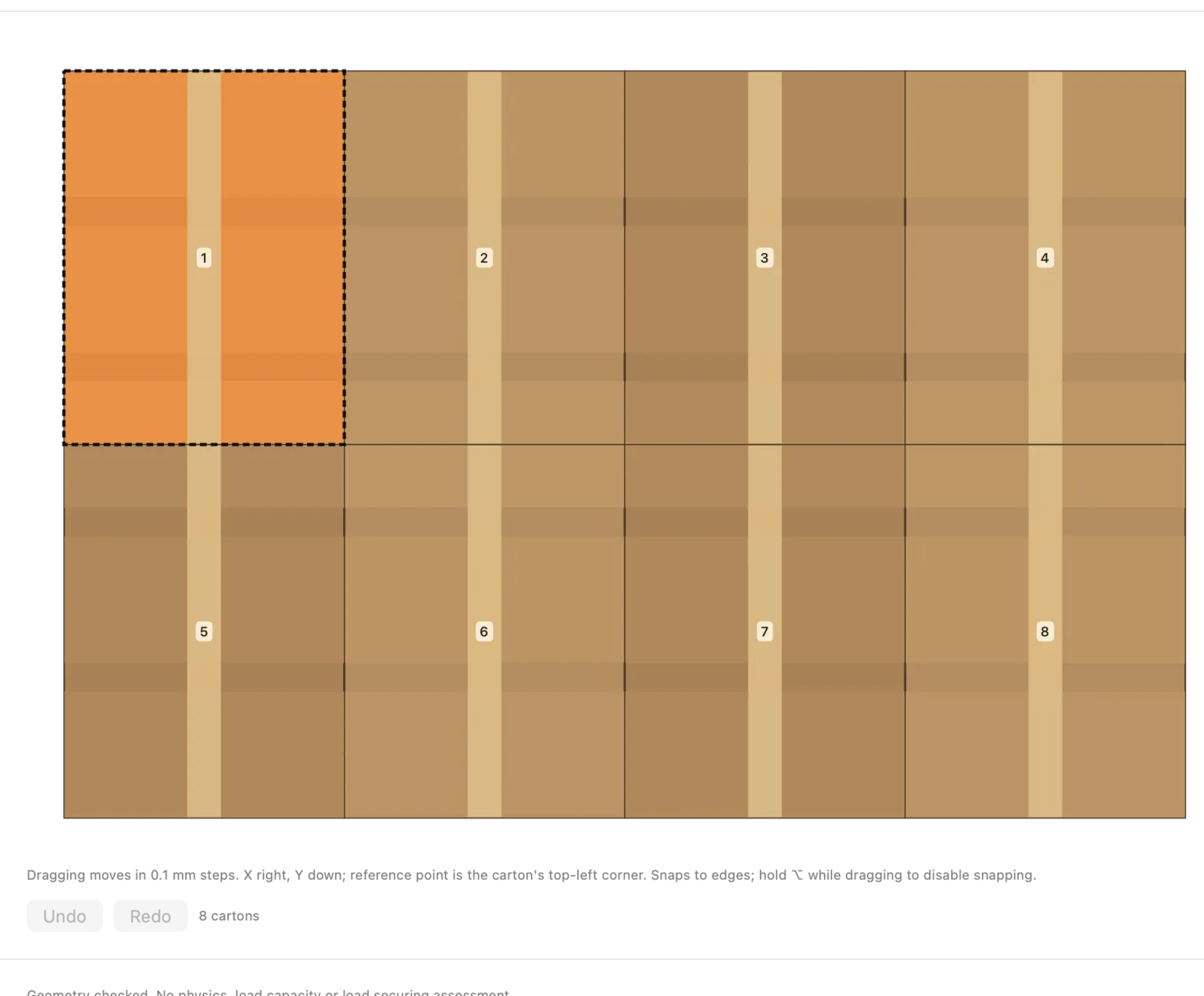
Adjust the pattern by hand
Actual JetPallet interface.

Workflow

How you work with JetPallet.

  1. 1

    Calculate the pattern

    Enter carton dimensions, weight, pallet and height limit. JetPallet searches grid, block, pinwheel, five-block and L-approach patterns and checks every layer independently. The layer editor lets you adjust a pattern by hand.

  2. 2

    Describe the cell

    In the robot dialog you set the pallet position, infeed, gripper, robot side (front, back, left, right) and up to 20 obstacles as axis-aligned boxes.

  3. 3

    Generate and check the sequence

    JetPallet works out the placing order and the path segments and checks them against the work envelope, obstacles and cartons already placed. If a step fails, planning stops with a collision message instead of writing an incomplete file.

  4. 4

    Export into your toolchain

    Sequence as JSON or CSV, geometry as STEP, COLLADA, OBJ, USDZ, DXF or IGES. Your post-processor or controller software reads the data – sign-off for the real cell stays with you.

In detail

In detail

01

Robot sequence as JSON with a schema

The exchange format (version 1) contains the project, a freshly recalculated pallet solution, the cell parameters and the sequence with TCP poses for picking and placing. Coordinates are integers in 0.05 mm, angles in degrees. The file structure is documented; one program holds up to 1,000 cartons.

Example: 400 × 300 mm on 1,200 × 800 mm gives 8 cartons per layer – eight pick-and-place steps per layer, in an order that depends on the robot side.

1200 mm800 mm300 mm300 mm300 mm300 mm400 mm400 mm
Layer plan: carton 400 × 300 mm on 1200 × 800 mm – 8 per layer. Drawn by this page’s web calculator.

02

CSV step table for pick-and-place lists

For controllers that read tables: one row per carton with step, layer, carton number, pick and place positions in millimetres and rotation angle. Millimetres with a decimal point regardless of language settings, UTF-8 without BOM, CRLF line endings.

03

Multi-pick and tier sheets

One grip can take 2 to 24 cartons as a gap-free block, limited by gripper length, gripper width and maximum total load. If a block fails the check, it is split into single picks. Tier sheets appear in the sequence with their position and the step before which they are placed.

04

Adjust the pattern by hand

When the cell needs a particular arrangement – gripper access, label position – you move and rotate cartons in the layer editor. JetPallet checks the edited layer again before you export it.

05

3D geometry for simulation and layout

Export the loaded pallet as STEP (AP214), COLLADA, OBJ with MTL, USDZ, DXF (one layer per pallet layer) and IGES, including actual layers, overhang and tier sheets. In STEP and COLLADA the pallet is an envelope with deck dimensions; OBJ, USDZ and IGES show the schematic pallet boards from the 3D view.

06

Automation with Shortcuts and AppleScript

The app offers four Shortcuts actions – calculate pallet, open project, create report as PDF, plan ERP order – plus AppleScript commands, for example for calculating a pallet. Orders from ERP or WMS are exchanged as JSON: import them in the app via the menu or hand them to a shortcut. Questions about your workflow? Write to us via the contact page.

Questions

Frequently asked questions.

Does JetPallet generate a ready-to-run robot program?

No. JetPallet provides a checked Cartesian sequence as JSON or CSV. Your post-processor or controller software turns it into a program for the specific robot controller. There are no manufacturer-specific drivers.

What units are the coordinates in?

In the JSON sequence they are integers in 0.05 mm, so divide by 20 to get millimetres. The CSV step table uses millimetres directly, with a decimal point.

Can I automate JetPallet?

Within the app, yes: Shortcuts with four actions (calculate pallet, open project, create report as PDF, plan ERP order) and AppleScript with three commands (calculate pallet, export report, plan ERP order). For files such as the PDF report or the ERP result, Shortcuts are the recommended way. The robot sequence itself is generated in the app.

Does JetPallet run on the cell PC?

JetPallet is a Mac app for macOS 15 or later. The exported files are text and standard formats that you can process on any system.

Try it with your own carton sizes

Calculate a pattern, describe your cell and look at the sequence before you write a line of controller code. JetPallet is free for 14 days, then USD 99 a year.

Try it free

Free for 14 days · then USD 99/year

Try it free14 days freeUSD 99/year